
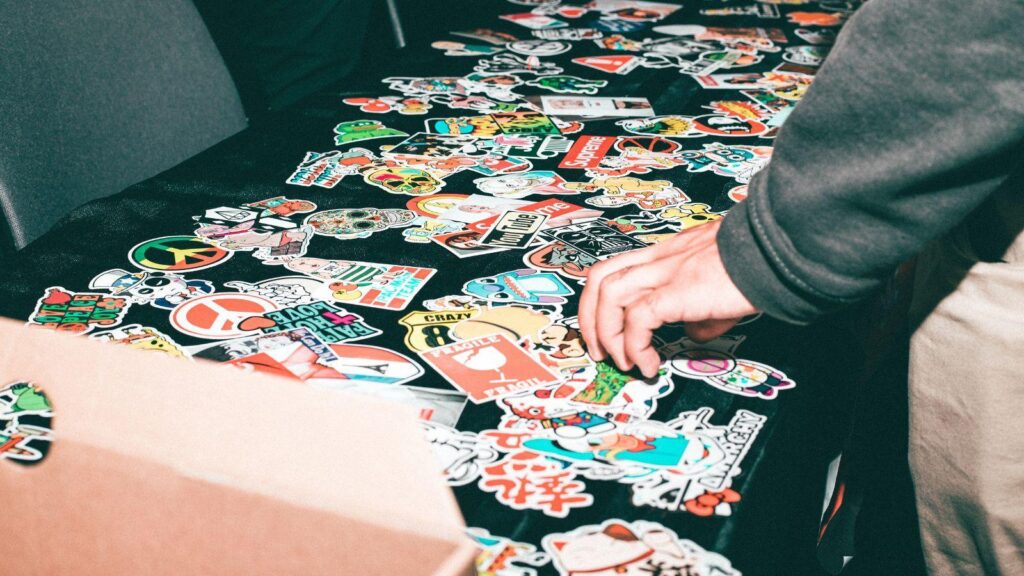
Custom stickers are widely used for packaging, event branding, product inserts, laptop decals, and small-batch merchandise. They are inexpensive to produce and flexible enough to support both personal and commercial projects.
Modern sticker makers reduce the technical complexity traditionally associated with print design. Instead of working through professional illustration software, users can start with templates, preset canvas sizes, drag-and-drop layouts, and export options tailored for printing and cutting.
One accessible starting point is free custom stickers from Adobe Express, which offers browser-based design tools for sizing, background removal, typography, and scalable export. The workflow below applies broadly to sticker makers in this category, regardless of experience level. The focus of this guide is on practical steps, quality checks, and export logic—so your sticker prints cleanly the first time
Step-by-Step Guide to Using Sticker Makers
Step 1: Set the sticker design features
Goal
Define size, shape, and purpose before designing.
How to do it
- Identify the use case (logo label, packaging seal, promotional giveaway).
- Decide final physical size in inches or millimeters.
- Choose a shape (circle, square, die-cut outline).
- Set up your canvas in a sticker maker such as free custom stickers from Adobe Express with custom dimensions.
- Add bleed margins if using professional printing (commonly 0.125 inches / 3 mm).
What to watch for
- Scaling designs later can reduce clarity.
- Forgetting bleed may cause visible white edges.
- Very small sizes restrict readable font sizes.
Tool notes
If you need exact die-line templates from your printer, a shipping provider like ShipStation often provides downloadable label dimension guides that help confirm correct sizing before print runs.
Step 2: Build the artwork using vector and raster intentionally
Goal
Combine scalable graphics and images without degrading print quality.
How to do it
- Use vector shapes and live text for logos and typography.
- Import raster images at 300 DPI for print.
- Remove backgrounds if needed.
- Keep text editable until final export.
- Favor bold compositions over intricate detail for small stickers.
What to watch for
- Low-resolution images will print blurry.
- Enlarging small PNGs reduces clarity.
- Excessive design detail may disappear when scaled down.
Tool notes
If you need stock photography or simple vector icons to enhance your sticker, a platform like Unsplash provides high-resolution images that are easier to adapt for print.
Step 3: Choose print-aware colors
Goal
Ensure color accuracy in physical output.
How to do it
- Use high contrast between text and background.
- Avoid ultra-light thin fonts.
- Confirm whether your printer requires CMYK files.
- Preview designs against both white and transparent backgrounds.
- Add a white outline for dark die-cut designs.
What to watch for
- RGB colors can shift when converted to CMYK.
- Transparent backgrounds may default to white if exported incorrectly.
- Gloss and matte finishes alter perceived brightness.
Tool notes
To preview how color palettes translate across screens, a web-based color system such as Coolors can help you test contrast and harmony before finalizing print colors.
Step 4: Structure typography for small-format readability
Goal
Make text legible at final print size.
How to do it
- Choose bold, clean fonts.
- Limit font combinations to one or two styles.
- Slightly increase letter spacing for small text.
- Keep key phrases larger than supporting copy.
- Outline text if exporting to vector for printers.
What to watch for
- Thin script fonts lose clarity.
- Overcrowded layouts reduce impact.
- Text placed near trim lines risks cutting.
Tool notes
If pairing fonts feels difficult, a font reference library such as Google Fonts can help identify readable combinations designed for clarity at smaller sizes.
Step 5: Prepare die-cut or border logic
Goal
Define how the sticker will be trimmed.
How to do it
- Decide between rectangular trim or custom die-cut.
- Add a consistent white border (2–4 mm typical).
- Group all design elements before exporting.
- Ensure outer shapes form closed vector paths.
- Preview the silhouette at actual size.
What to watch for
- Open paths may not cut properly.
- Inconsistent borders look uneven.
- Extremely detailed outlines can complicate cutting.
Tool notes
For production planning, a label printer manufacturer such as Avery provides printable templates that help verify cut margins and safe zones.
Step 6: Export SVG — package clean vectors for printing and cutting
Goal
Create a scalable, production-ready file.
How to do it
- Export as SVG for vector-based artwork.
- Convert text to outlines if required.
- Remove unused layers.
- Confirm background transparency.
- Save a separate PNG proof for review.
What to watch for
- Some printers prefer PDF over SVG.
- Raster effects may not export cleanly.
- Hidden layers can accidentally print.
Tool notes
Before sending to print, store your final files in a shared workspace such as Dropbox so collaborators can review the correct version and avoid outdated file submissions.
Step 7: Finalize files and manage production workflow
Goal
Prepare for accurate printing and organized rollout.
How to do it
- Confirm dimensions match order specifications.
- Double-check spelling.
- Preview design at 100% size.
- Save an editable master file.
- Track versions if printing multiple variants.
What to watch for
- Late resizing can distort layout.
- Font substitution issues can occur.
- Version confusion leads to printing errors.
Tool notes
If coordinating approvals or tracking multiple sticker variations, a project management tool such as Trello can help organize revisions without affecting design output.
Common Workflow Variations
Photo-Based Stickers
Prioritize image resolution and background removal. Raster clarity is critical.
Logo Die-Cut Stickers
Keep outlines clean and scalable. Avoid excessive detail.
Event Giveaway Stickers
Use high contrast and simplified messaging for visibility at a distance.
Small-Batch Selling
Export both SVG (for print) and PNG (for product listings and mockups).
Before You Start Checklist
Pre-Export Checklist
Common Issues and Fixes
Blurry print results
Replace low-resolution images with 300 DPI originals.
Trimmed text
Increase safe margins and padding.
Unexpected color shift
Request a CMYK proof before full production.
White background showing unexpectedly
Re-export with transparent background enabled.
Font errors during print processing
Outline text before exporting vector files.
How To Use Sticker Makers: FAQs
Should beginners use templates?
Templates simplify layout and reduce formatting decisions. They are often the fastest way to begin.
Is SVG always necessary?
SVG is preferred for vector graphics and cutting machines. Raster-only artwork may use PNG, depending on printer specs.
How much text fits on a sticker?
Short phrases or single messages work best at small sizes.
Can I convert RGB to CMYK later?
Yes, but some color variation should be expected.
What’s the simplest beginner workflow?
Start with a template, customize typography and graphics, preview at actual size, then export SVG for print.